Floor Plans
Learn how to manage and optimize your floor plans for accurate WiFi planning.
Requirements
- Supported formats: PNG, JPG
- Maximum file size: 10MB
- Recommended resolution: 1920x1080 or higher
- Clear wall definitions for best results
Uploading Floor Plans
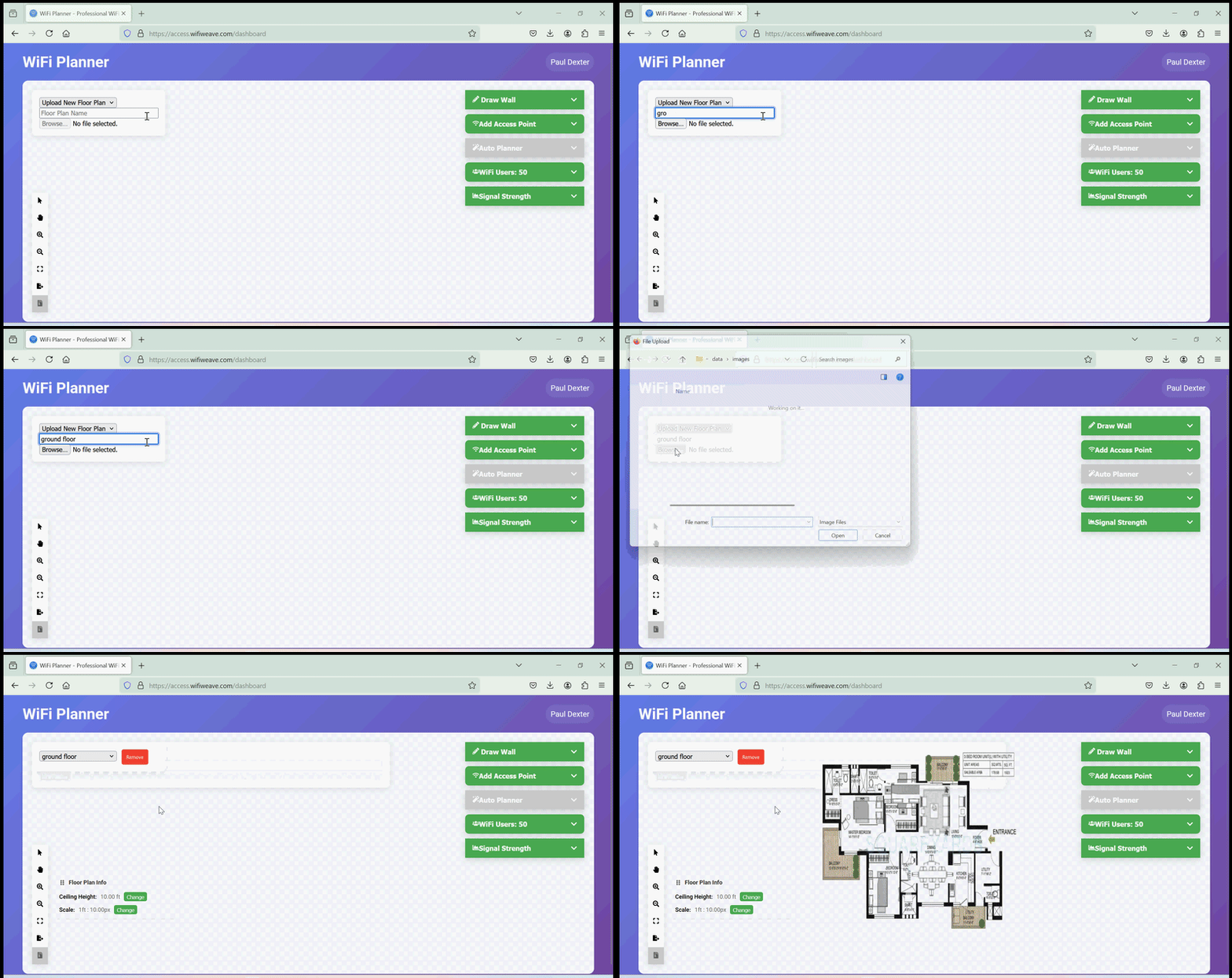
To upload a new floor plan:
- Click the "Upload New Floor Plan" option in the top menu
- Enter a name for your floor plan
- Click "Browse" to begin
- Select your floor plan file to upload
Setting the Scale
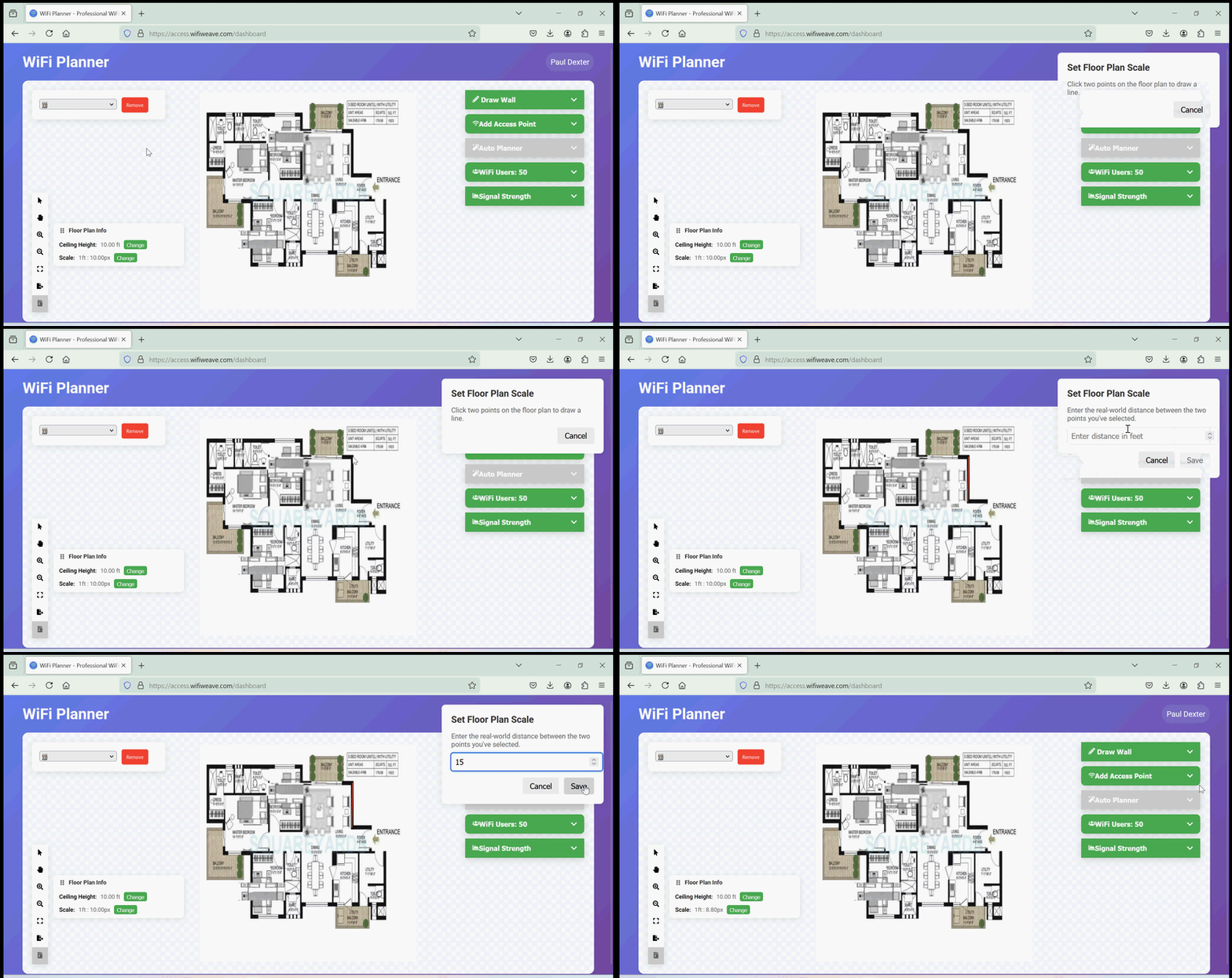
Pro Tip
Use a known distance like a doorway (typically 36 inches) or room dimension for accurate scaling.
Accurate scaling is essential for:
- Precise signal strength calculations
- Correct coverage area estimation
- Accurate wall attenuation effects
Wall Management
Manual Wall Placement
Draw walls by clicking and dragging:
- Select wall type from the menu
- Click starting point
- Drag to end point
- Release to place wall
- Select the wall using the select tool and resize it if needed
Wall Types
- Concrete (12 dB loss)
- Drywall (3 dB loss)
- Glass (2 dB loss)
Automatic Wall Detection
Premium feature that automatically detects walls from your floor plan:
- Click "Auto Detect Walls" button
- Review detected walls
- Adjust wall types if needed
- Select the wall using the select tool and resize it if needed