Imports
Most designs do not start from nothing.
What can I import?
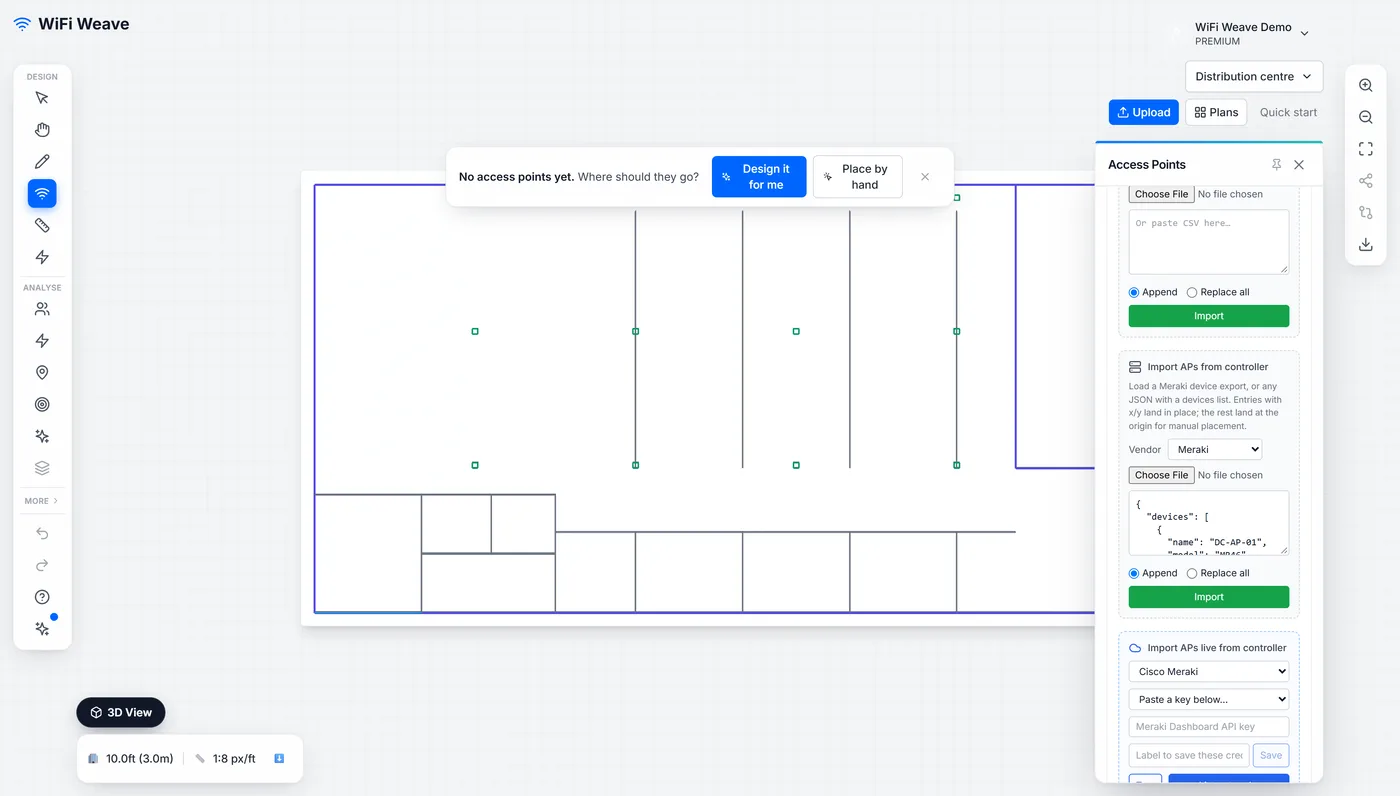
| Source | What comes in |
|---|---|
| DXF / DWG drawing | Walls, wall materials from layer names, and the scale from the drawing units |
| PDF / PNG / JPG plan | The plan image |
| Ekahau .esx project | Floor plans, access points and wall segments |
| Cisco Meraki organisation (live, API key) | Access points with names, models, serials and channels, linked to the dashboard device for Live view |
| Controller export (Meraki or generic JSON) | Access points with names, models and channels; placed where the export gives a position, otherwise at the plan origin for you to drag into place |
| Access points CSV | Access points with positions and settings |
| Walls CSV | Wall segments with materials |
How do I pull access points from a Cisco Meraki organisation?
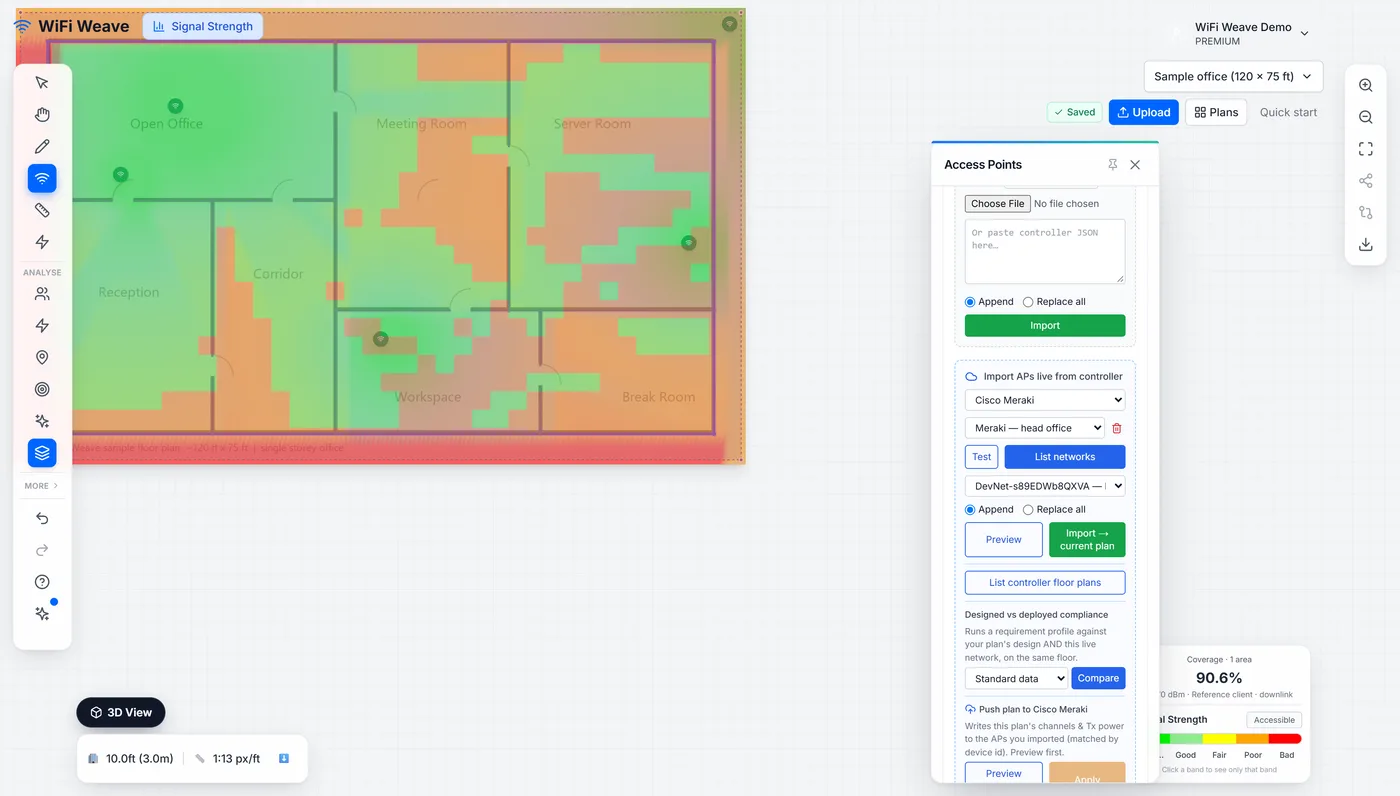
- Open the Access Points panel, go to the Import tab and choose Cisco Meraki.
- Paste a Meraki dashboard API key (Organization → Settings → Dashboard API access) and click Test. The panel confirms the organisations the key can see.
- Click List networks and pick the network for this plan.
- Give the key a label and click Save. It is stored encrypted and reused by Live view; the key itself is never shown again.
- Click Import → current plan. Each wireless device lands on the plan with its name, model and serial, and stays linked to the dashboard device from then on.
The imported access points land at the plan origin unless the Meraki floor plan places them; drag each to where it hangs. From then on the plan knows which physical device each marker is, which is what Live view and Troubleshoot rely on.
Other controllers
Cisco Meraki is the one controller offered live, because it is the one proven end to end against a real network. Others return as each is proven the same way; in the meantime a generic JSON export brings the access point inventory of any controller onto the plan.
How do I document a network I did not design?
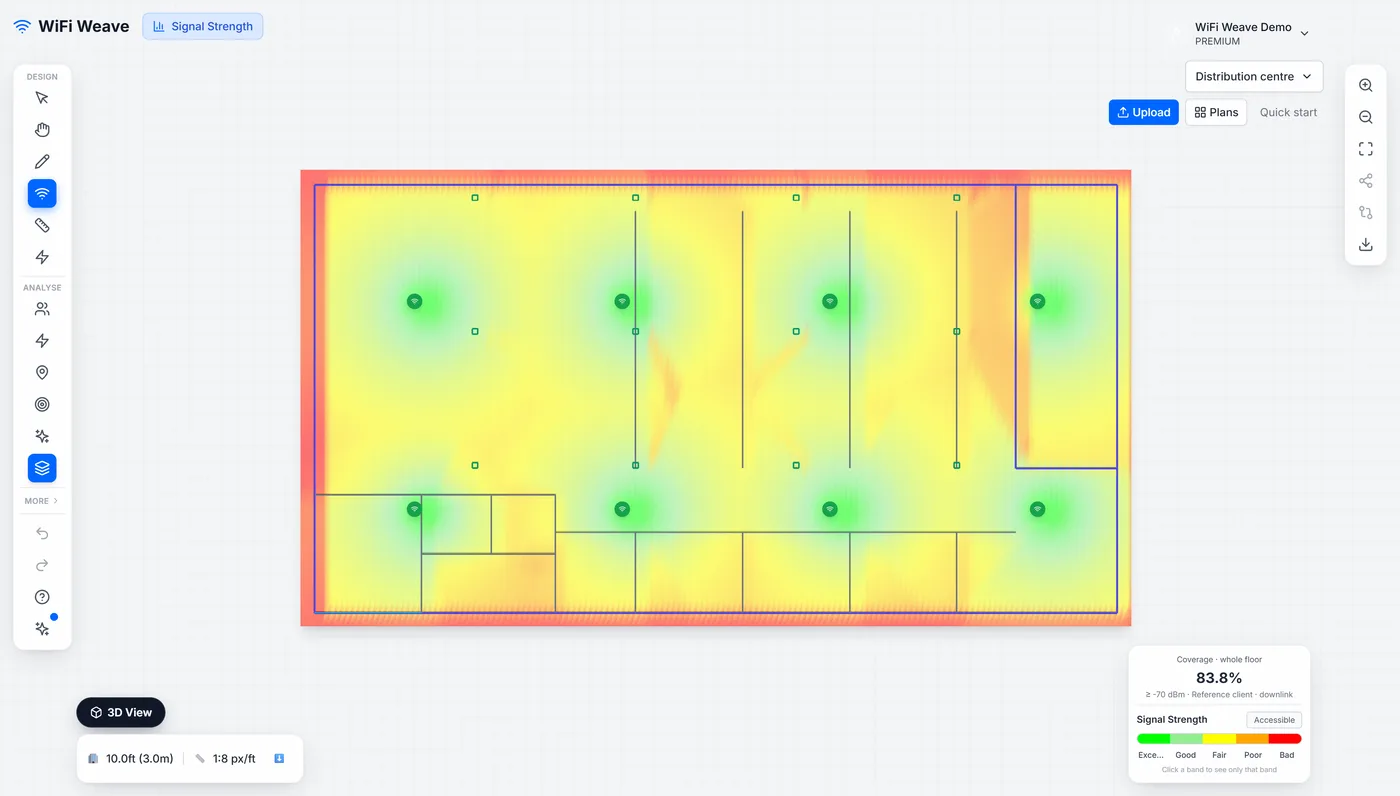
Import the building, then import the access points from the controller the client already owns: live from Meraki, or from a JSON export for anything else. An export that carries x/y positions lands in place; a plain inventory lands at the origin for you to place.
- Import the floor plan (CAD, PDF or image).
- Open the Access Points panel, Import tab, and scroll to Import from controller.
- Choose Meraki or Generic JSON, load the export file, and choose append or replace.
- Click Import. The access points appear on the plan with their names, models and channels.
- Check the design on the Channel Interference and Secondary Coverage layers, then export the AP list as the as-built documentation.
Common questions
Does importing replace my existing access points?
Only if you choose "Replace all". The default is to append.
Can I import an Ekahau project?
Yes. An .esx import brings floor plans, access points and wall segments into WiFi Weave.