Troubleshoot a complaint
Users blame the WiFi for most problems; it is the cause less than half the time. This tool gives the honest answer in a minute instead of half an hour.
How does Troubleshoot a complaint work?
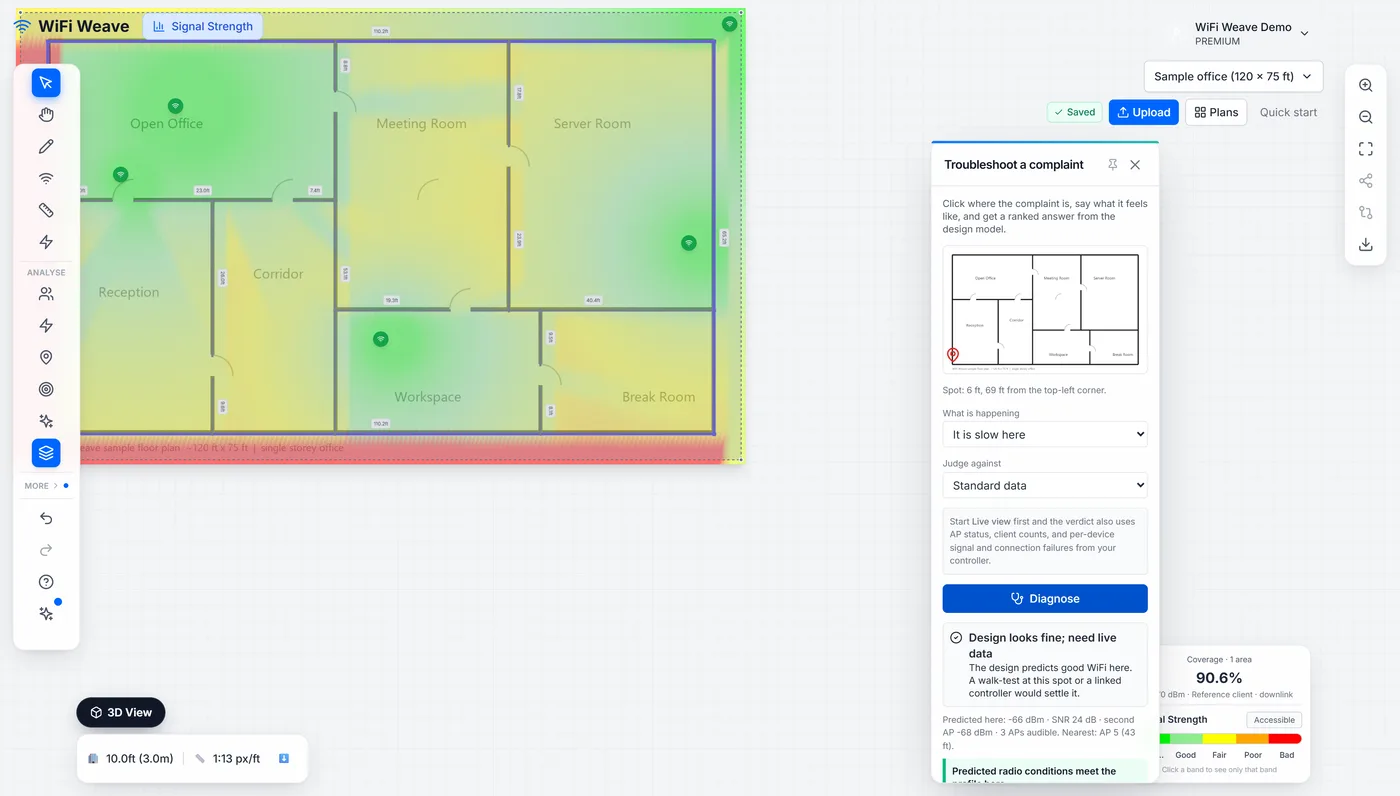
- Open Troubleshoot from More tools and click on the thumbnail where the complaint is. The panel states the spot in feet from the top-left corner.
- Say what is happening: slow, cannot connect, drops when walking, drops while sitting still, or only one device.
- Choose what to judge against — the same requirement profiles as compliance, so "slow" is measured against the application the room is meant to run.
- Click Diagnose. The verdict comes back with the predicted conditions at the spot and a ranked list of findings, each with evidence and the next step.
The design model supplies the predicted signal, the margin over noise, the second access point available for roaming, channel sharing among the audible access points, and the load from the capacity profile. A spot that passes everything gets the honest answer: the design looks fine, so rule out authentication, DHCP and DNS before touching it.
What verdicts can it give?
| Verdict | Meaning | What to do next |
|---|---|---|
| It is the WiFi | The radio conditions or the live access point explain the complaint | Follow the first finding: move or add an access point, fix the channel, or restore the offline AP |
| Probably not the WiFi | The radio is fine where the complaint is; the symptom points elsewhere | Check authentication, DHCP and DNS, then the client device |
| Radio and network service both involved | A radio finding and a connection-step failure both apply | Fix the network-service failure first; it affects every client |
| Design looks fine; need live data | Nothing in the model explains it | Start Live view and diagnose again |
What does Live view add to the verdict?
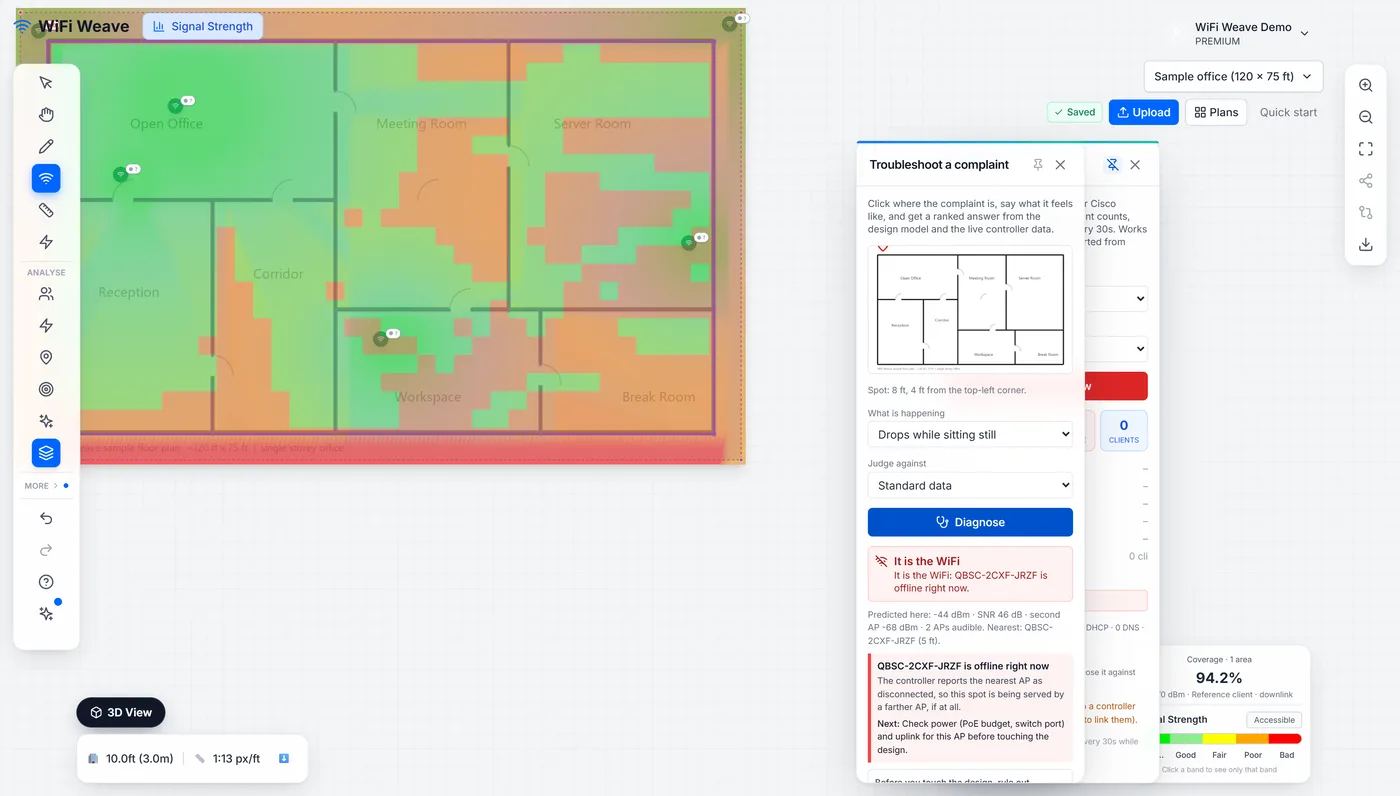
With Live view pinned, the diagnosis also uses the access point status, the live channel, the client count and the hour's failed connections from the controller, and you can pick the complaining device from the client list to include its own signal and connection history. An access point that is offline right now outranks every prediction: the verdict says so, and the next step is power and uplink, not the design.
| Finding | Source |
|---|---|
| Weak predicted signal at this spot | Design model |
| Signal is there but the margin over noise is thin | Design model |
| No second AP to roam to | Design model |
| Several audible APs share one channel | Design model |
| More people than the design load per AP | Capacity profile, or the live client count |
| Nearest AP is offline right now | Live view |
| Live channel differs from the plan | Live view |
| Failed connections stopped at AUTH, DHCP or DNS | Live view |
| Device is on 2.4 GHz, or reports a weak signal | Live view, when a device is picked |
Common questions
Which plan includes Troubleshoot?
Troubleshoot a complaint is on the Pro and MSP plans, and in the 7-day Pro trial.
Does it work without a controller?
Yes. Without Live view it answers from the design model alone, which already separates "the radio is bad here" from "the radio is fine here, look elsewhere". Live data makes the verdict firmer and adds the offline, channel and connection-failure findings.
Can it see the complaining device?
With Live view running on a Cisco Meraki organisation, yes: pick the device from the client list and its band, signal and connection failures join the evidence.